
This Knowledge Base still exists because I kept a copy of it while I worked for the ToolBook department of SumTotal Systems. In fact I'm the one who created the Knowledge Base while I worked there. Since SumTotal Systems will no longer host this resource I've decided to host it myself.
The worst part of ToolBook reaching End Of Life is that it is no longer possible to Activate (with your License Key) a new installation of ToolBook. There is no workaround for this, no way to bypass this requirement for Activation. If you have an installation of ToolBook on a computer which is already Activated, it will remain Activated, but you will not be able to get it Activated on a new computer.
There are likely only a handful of people still using ToolBook today, so this Knowledge Base is really for historical purposes.
ToolBook products include license activation technology that help prevent unauthorized copying of the software. Activation protects the intellectual property and innovation at the heart of the software industry. SumTotal is committed to eliminating unauthorized use of its software in a manner designed to have a minimal impact on licensed users, and starting with ToolBook 9.5 activation technology has been included within ToolBook.
When a customer installs ToolBook, and subsequently launches ToolBook for the first time, they are asked to enter a License Key. The License Key information is transmitted to SumTotal and once the License Key is verified in real time by our Activation Server, the ToolBook software is activated and available for use. This process requires a live Internet connection and usually takes less than ten seconds. If you do not have a live Internet connection you can utilize ToolBook in a limited-time Trial Mode, until you can obtain Internet access.
A single license of the ToolBook product allows a single user to install the product on a primary computer and also on a secondary home/laptop computer for his or her use. While the License Activation process supports installing and activating ToolBook software on two computers, use of the product on the second computer is restricted to the user who licensed the software. Allowing others to use a second copy of the software violates the product license agreement. Additional licenses can be purchased if you need more users to use ToolBook.
Did you acquire a new computer and need to find a way to move the ToolBook license from the old machine to the new machine? You can do this by Deactivating ToolBook from the old machine, and then Installing/Activating on the new machine. Deactivating tells the Activation Server that you'll no longer be using ToolBook on that computer - allowing you to activate on a different computer. An Internet connection is required for this to succeed.
You can deactivate ToolBook by accessing the License Activation window. Choose License Activation from the ToolBook Help menu, and choose Deactivate.
If an Internet connection cannot be detected at the time the License Activation window is opened or if ToolBook is unable to use your Internet connection for technical reasons, the choice to enter a License Key will be disabled and grayed out. To fix this, close the License Activation window, establish your Internet connection, and open the License Activation window again. You'll also find a PROXY button in the License Activation screen. If your company uses a Proxy to gain Internet access, you'll need to enter your Proxy information.
The license key is made up of two values with a dash in between. Ensure you enter your license key exactly the same way it is provided to you. If the license key you enter does not match an existing license key on our licensing server, this error will occur.
This error means that the licensing server has determined that ToolBook cannot be activated on this particular computer. Possible reasons for such a message:
Once you deactivate ToolBook using the Deactivate feature within the License Activation window, and close the dialog - ToolBook will tell you that your current license is no longer valid and will ToolBook will exit. The next time you open ToolBook you'll be prompted to enter a License Key. If you find that ToolBook does not force you to exit, and does not prompt you for a new License Key when opening ToolBook, this means that you were not successfully deactivated. This can occur if you didn't have a live Internet connection at the time of deactivation. The solution is to ensure you establish a live Internet connection and attempt deactivation again.
If you need to configure proxy settings in order to allow ToolBook's activation logic to use your Internet connection, use the Proxy Settings button in the License Activation window, and enter your proxy information in the format of:
<server>:<port>
such as:
PLEASE IGNORE THIS SECTION UNLESS SPECIFICALLY DIRECTED BY A TECHNICAL SUPPORT REPRESENTATIVE
For Product Activation, ToolBook attempts to use your Internet connection to communicate with the Licensing Server located on the SumTotal website. If your computer does not have an Internet connection or ToolBook cannot utilize your connection for some technical reason (such as a corporate firewall or a proxy server) - you may experience:
or
In these cases it is possible to MANUALLY ACTIVATE your copy of ToolBook in a way which does not utilize your Internet connection.
The normal activation process works by silently transmitting your entered License Key and an internally generated Magic Number (called an Activation ID) to the Licensing Sever on the SumTotal web site using your Internet connection. The server then returns another Magic Number (called an Activation Code) back to ToolBook, completing the Activation process.
If an Internet connection cannot be used to activate ToolBook, it has to be done manually. The following instructions outline this MANUAL ACTIVATION process.
To Manually Activate you must send us the following TWO codes.
LOCATING YOUR ACTIVATION ID
The Activation ID varies from computer to computer, and can be found within the ToolBook software, on the License Activation screen. By default, it is hidden from view, and can be found on a Manual Activation sub-screen.
FINDING THE 'MANUAL ACTIVATION' OPTION
The option to perform a Manual Activation is by default hidden from normal view.
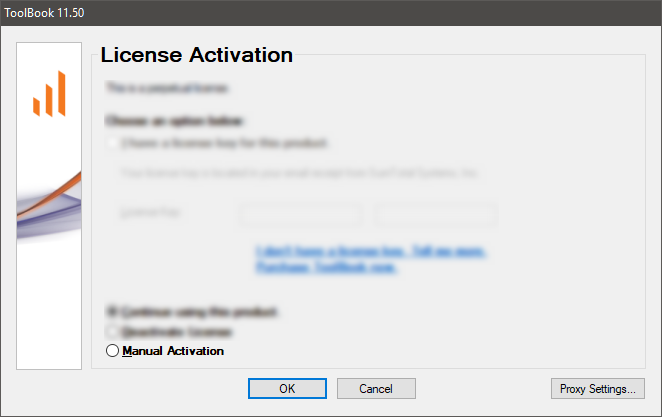
In order to show the Manual Activation option as a choice at the bottom of the License Activation screen (as seen above), follow these steps:
If you are using ToolBook 10.5, or 11.0 or 11.5:
If you are using ToolBook 9.5 or 10.0:
NOTE: Some users find this very hard to accomplish. If you are having problems, we recommend using a co-worker to help you. Have a co-worker hold down on both shift keys as you use your mouse to open ToolBook. They can release the shift keys once the License Activation window appears.
LOCATING YOUR ACTIVATION ID
Once ToolBook provides you with the option for Manual Activation at the bottom of the License Activation screen, perform the following steps:
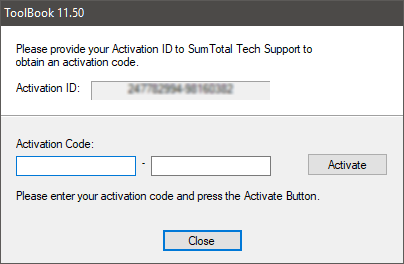
COMPLETING THE PROCESS
Please provide your ToolBook Technical Support Representative with the following 3 items:
...and they will provide you with an Activation Code to type into this dialog.
Once you've typed in your Activation Code, click the ACTIVATE button which will complete the activation process.