PATCH 4 FOR TOOLBOOK 11.5
August 4, 2015
WHO CAN USE THIS PATCH?
The Patch can be used on an installation of ToolBook 11.5 only. It will update an installation of (ToolBook 11.5, ToolBook 11.5 Patch 1, or ToolBook 11.5 Patch 2, or ToolBook 11.5 Patch 3) to ToolBook 11.5 Patch 4.
HOW DOES THIS RELATE TO THE OLDER PATCHES
Patch 4 replaces the older Patches, and includes everything offered in the older patches.
WHAT DOES THIS PATCH DO?
This Patch resolves the following issues:
- Web Publishing Error
(From Patch 1)
Execution Suspended - Not an object: <target>. [more information...]
- Web Publishing Error Log Entry
(From Patch 1)
Error: You cannot get or set a property of a Popup Media Frame [more information...]
- Compatibility with Internet Explorer 11
(From Patch 2)
Various technical problems loading content into IE 11 [more information...]
- Time Markers
(From Patch 3)
Time Markers can't be saved on a Universal Media Player [more information...]
- Bookmarking Checkbox
(From Patch 3)
The "Enabled Bookmarking" checkbox was mistakenly always grayed out (disabled) in Properties for Book screen.
- Chapter Menu
(From Patch 3)
Chapter Title field on Properties for Page screen was limiting input to 64 chars instead the proper value of 255.
- Score Actions Editor Logic Detected
(From Patch 3)
Erroneous reporting of this following error within the DHTML Publishing Log:
SCORE Actions Editor logic detected, but not allowed on a Score catalog button
- About ToolBook
(From Patch 3)
ToolBook's About ToolBook dialog (found in the Help menu) will now properly identify which patch is installed.
The Startup screen will also identify which patch is installed. Additionally you can use a Check for Update feature in the About ToolBook dialog to see if there are any newer updates for ToolBook 11.5.
- Microsoft Edge Web Browser
(New to Patch 4)
Properly handle the Microsoft Edge web browser [more information...]
HOW TO INSTALL THE PATCH
To install the patch, follow these steps:
NOTES
- The downloadable version of ToolBook 11.5 does not include any patches.
- Be sure you have Administrative rights to your computer as you will need to have them in order to install this patch.
- Note that it very likely that you will have to launch the installer by Right-Clicking on it and choosing Run As Administrator, in order for it to be able to install properly.
STEPS
- If ToolBook 11.5 is open, close it
- Download this file to your Desktop [you might need to right click the link below and choose Save Target (or) Save Link As]

- Double-click on the downloaded file to open the installer although we highly suggest that you right-click the installer and choose Run As Administrator
- Follow the steps within the installer
- It is not necessary to reboot once the installer finishes
VERIFYING THE PATCH IS INSTALLED
After installing the Patch, perform the following check to verify it has been successfully installed.
STEPS
- Open ToolBook 11.5 from the Windows Start Menu
- When the ToolBook Startup window appears, the version of ToolBook will be stated across the top
- Verify it says: Startup - ToolBook 11.5 Patch 4
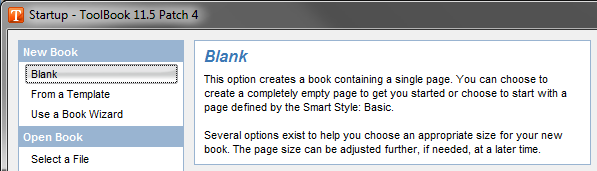
- If it does not, then the installation failed. Our recommendation is to install the Patch again, but this time ensure that you right-click the installer and choose Run As Administrator.
HOW TO REMOVE THE PATCH
The Patch does not have an uninstall option. However if you need to remove the Patch from your computer, follow these steps:
STEPS
- If ToolBook 11.5 is open, close it
- Make sure you have Administrative access to your computer. If you don't or are not sure that you do, have your IT Team help you with this process.
- Locate the installation folder for ToolBook 11.5, typically here:
C:\Program Files\ToolBook\ToolBook 11.5\
- Rename the "ToolBook 11.5" folder to "ToolBook 11.5 Disabled"
- Within the Programs and Features Windows Control Panel select the entry for ToolBook 11.5, and choose the option REPAIR.
- This will Repair your ToolBook installation, restoring any missing files. It will sense the ToolBook 11.5 folder is missing and recreate it using original files from the ToolBook 11.5 installer.
- When this process is finished, you'll be reverted back to ToolBook 11.5 (No Patches).
